Jira calendars
A Jira calendar shows the issues of one project, or of any JQL query, on the dates you choose. Each calendar you add is yours: other people don't see it.
Add a calendar
- In the side panel, under My calendars, choose Add calendar.
- Type a Name. The coloured square next to it sets the calendar's colour.
- Under Type, choose Project and pick a project, or JQL Filter and type a query in Jql filter. Use Jql Editor opens Jira's JQL editor with suggestions; Update JQL puts the query back.
- Choose the Event Start and Event End fields.
- Choose Submit.
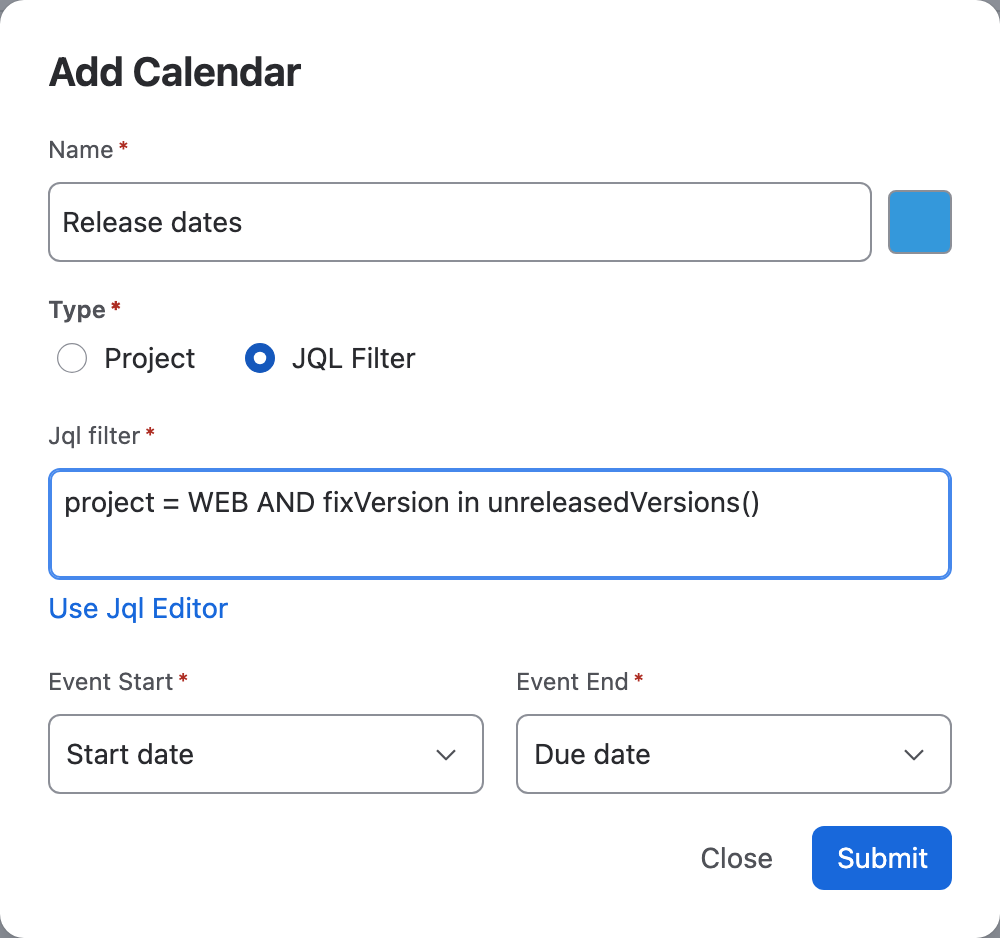
Start and end fields
You can use any Jira field of type date or date-time, including your own custom fields, for example a "Release date" or "Change window start".
- Pick the same field for both to show each issue on one day.
- Issues with no value in either field don't appear.
- A calendar with None as its fields is listed but shows no issues.
New calendars start with the fields you used last time. If you haven't chosen any yet, they start with the site default your Jira admin set, or else Start date and Due date.
Show, edit and delete calendars
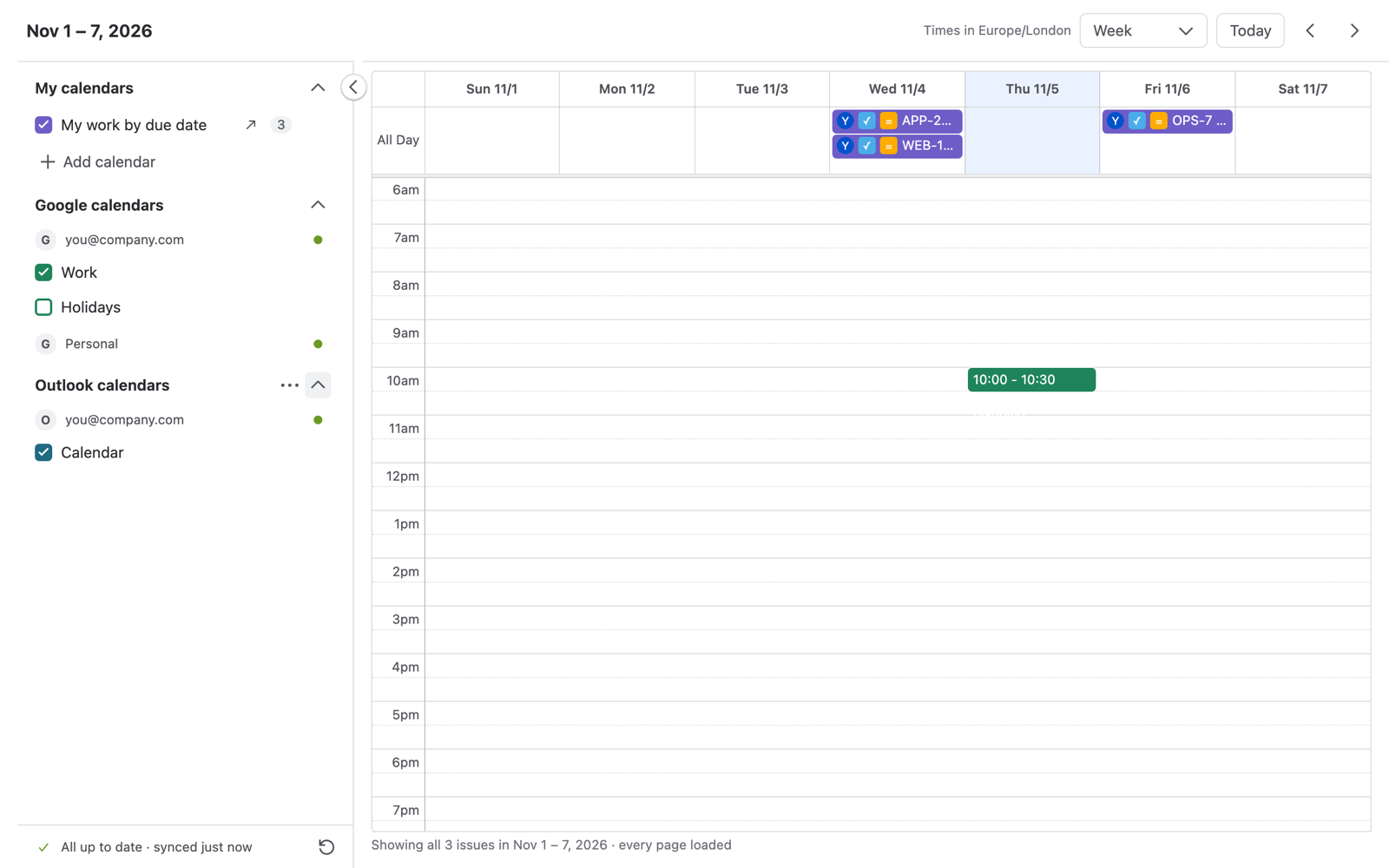
- Tick or untick a calendar to show or hide it. The number next to it is how many of its issues are in view.
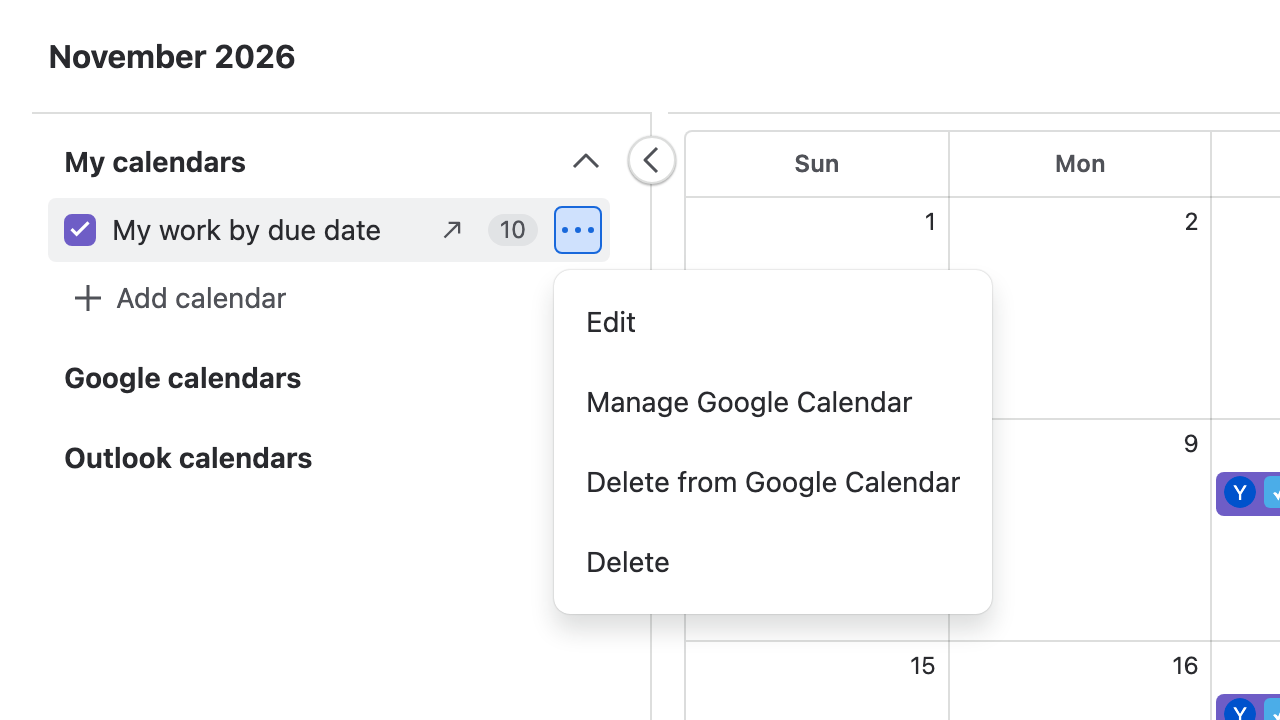
- Point at a calendar and choose ⋯ for Edit, Delete and the send to Google or Outlook options.
- Delete removes the calendar from Solid Calendar only. Its issues stay in Jira.
Views and navigation
Use the view menu at the top right to switch between Month, Week, Day and Schedule (a list of the week). Today jumps back to today, and the arrows move back and forward. Solid Calendar remembers your last view.
Times are shown in your browser's time zone, as the header says (Times in …).
What you see on an issue
- Jira issues show the issue key and summary, with the assignee's avatar, the issue type and the priority.
- Google and Outlook events start with Google | or Outlook |.
- Point at an item to see its dates. Click it for details; Open opens the Jira issue in a new tab. Double-clicking an issue opens it too.
Move issues by dragging
Drag an issue to another day or time to change its start and end dates in Jira. Drag its edge to make it longer or shorter. A message confirms the new dates.
- Solid Calendar changes the issue as you, so you need permission to edit it in Jira.
- Date fields get the new date; date-time fields keep the time you dropped it on.
- If Jira refuses the change, the issue moves back and you see why.
Create an issue from the calendar
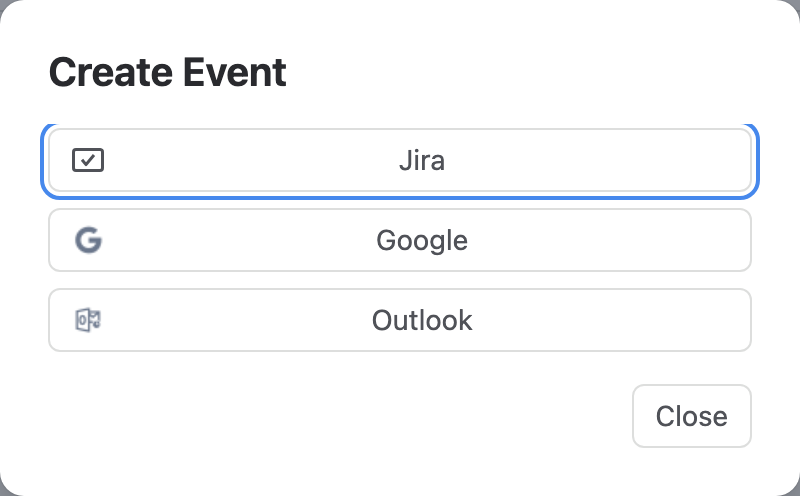
Click an empty spot on a day. In Create Event, choose Jira: Jira's own create dialog opens with the start and end dates set to that day and you as the assignee. The Google and Outlook options create calendar events; see Create events.
When a month looks empty
If none of your ticked calendars has issues in the period you're looking at, a card explains why. For example, the issues have no dates yet, or the next one is later. Go to … jumps to the next issue, and Edit calendar opens the calendar's settings.
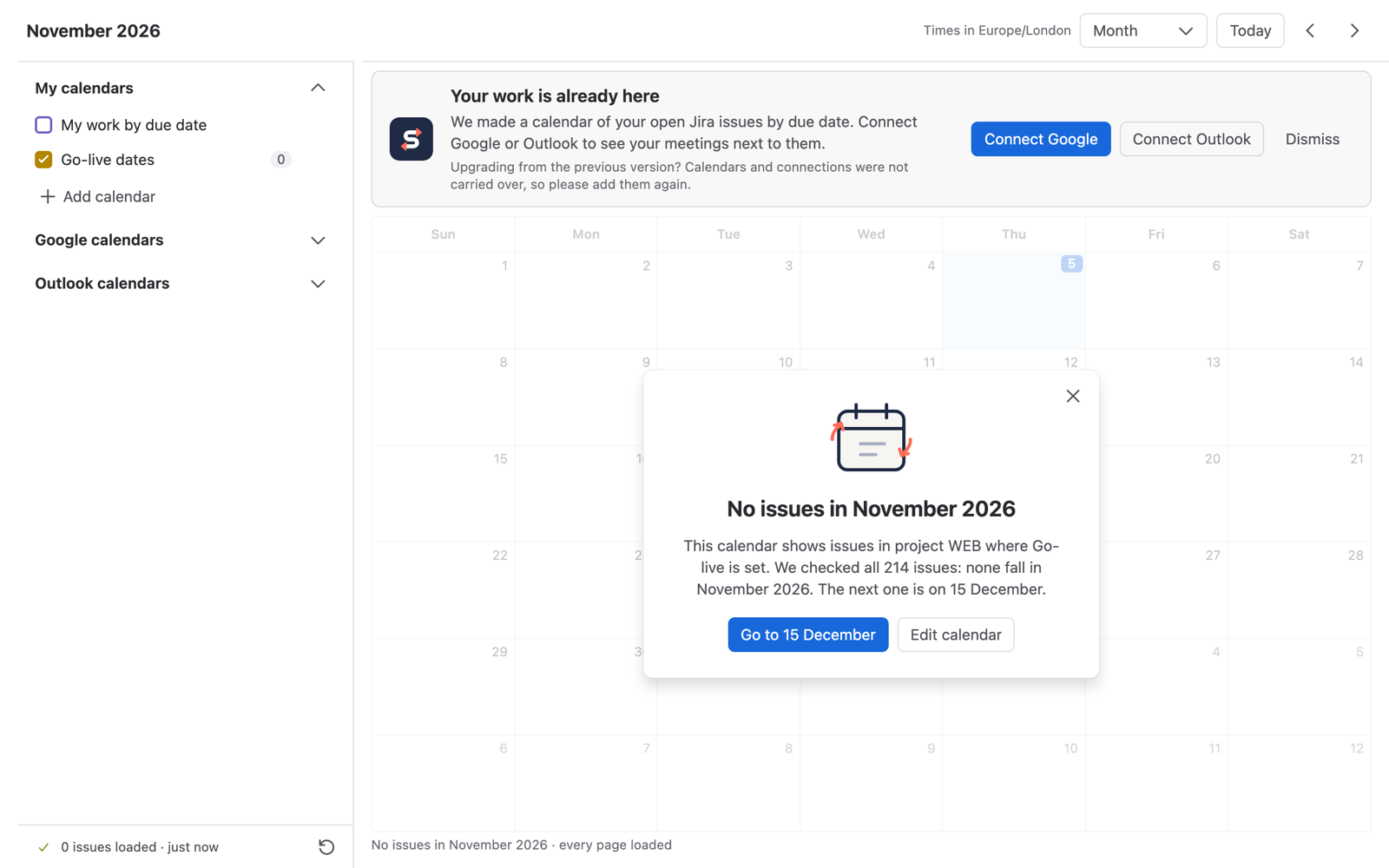
The line under the calendar tells you how many issues are shown, for example Showing all 10 issues in November 2026 · every page loaded.