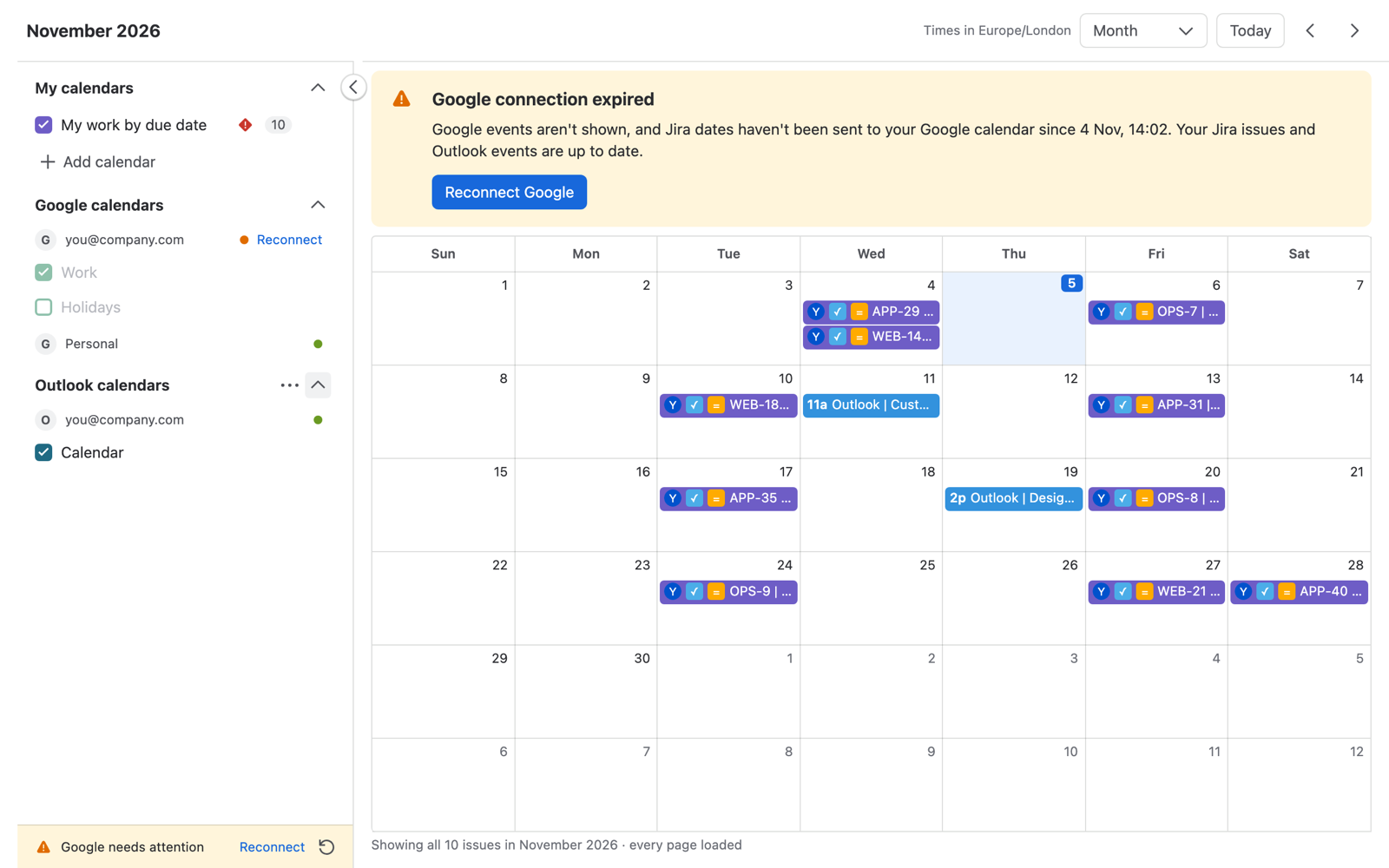
Google Calendar and Outlook
Connect your own Google and Microsoft accounts to see their calendars next to your Jira work. Each person connects their own accounts, and only they see their events.
Connect an account
- In the side panel, choose Connect Google or Connect Outlook. Or point at Google calendars or Outlook calendars, choose ⋯ and then Create.
- Give the connection a name you'll recognise, for example "Work", and choose Submit.
- Sign in to Google or Microsoft and allow access to your calendars.
- You come back to Solid Calendar, and the account's calendars are listed in the side panel.
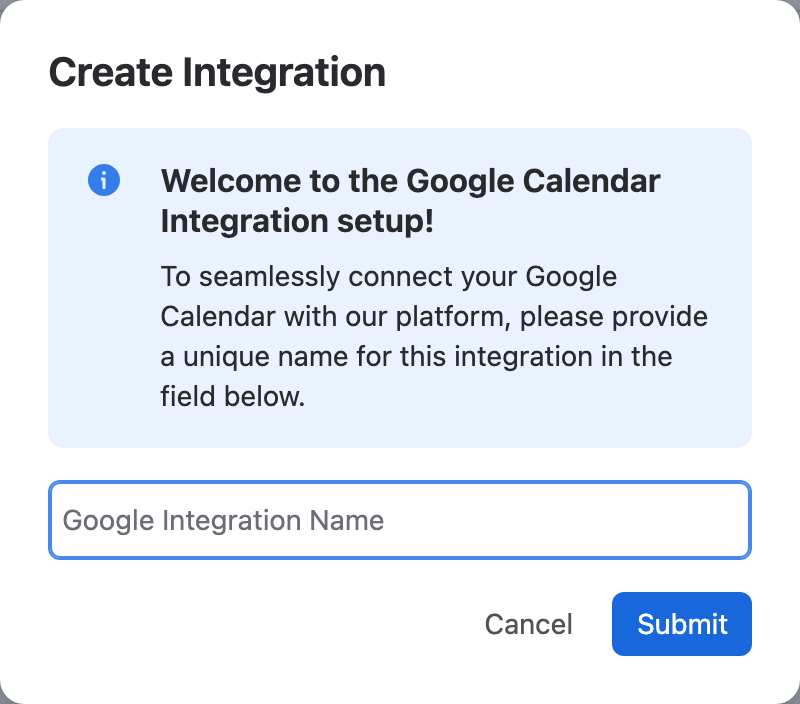
You can connect several Google and several Outlook accounts. Connecting the same account again just refreshes it.
Choose which calendars to show
Under each account, tick the calendars you want to see. Untick one to hide its events. You can show up to 100 calendars per account.
The dot next to an account shows its state. Point at it to see when it last synced, for example Synced 2 min ago.
Create events
- Click an empty spot on a day and choose Google or Outlook.
- Fill in the form and choose Submit.
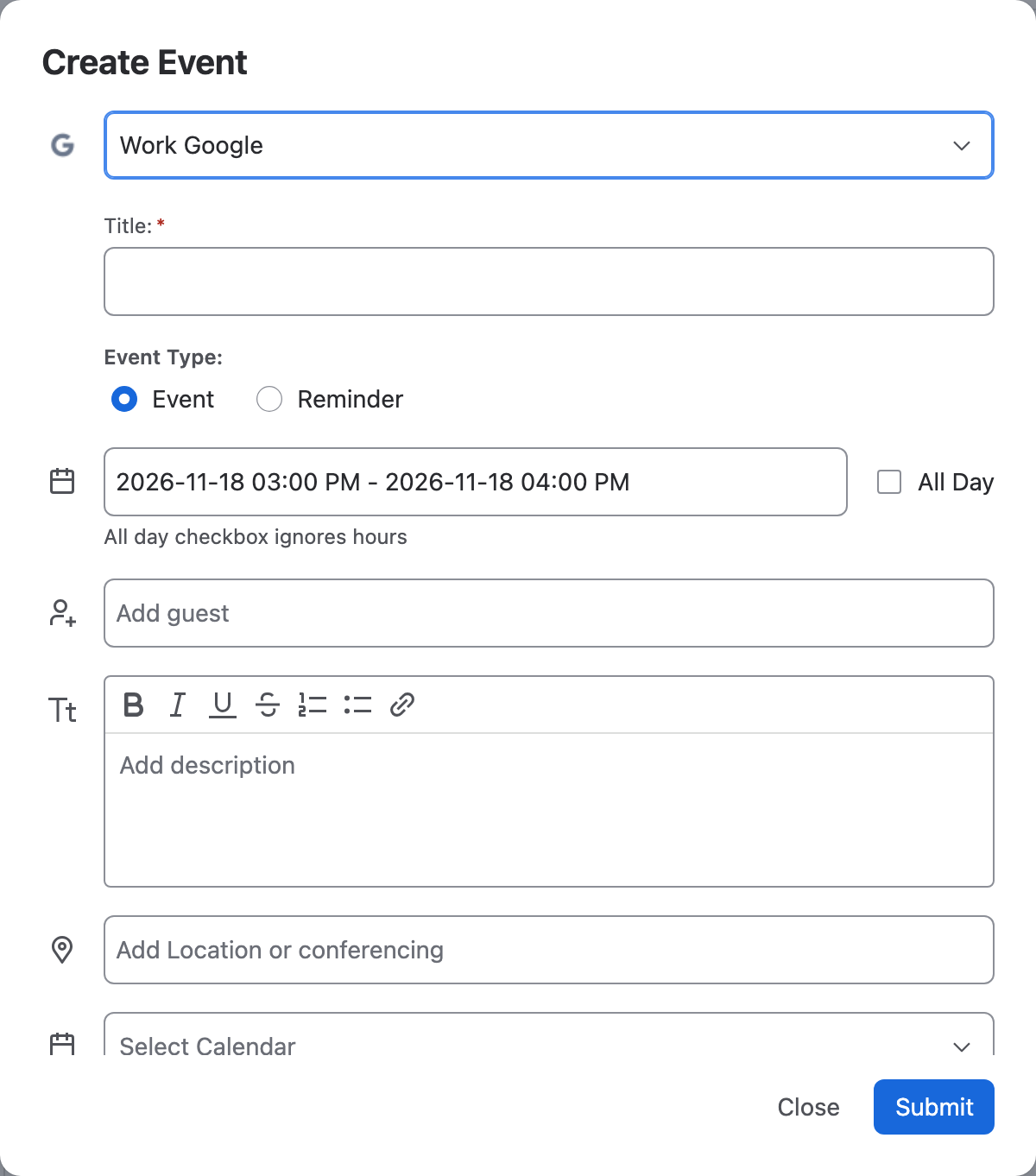
- Title and the dates are required. All Day ignores the hours.
- Add guests, a description with simple formatting, and a location.
- Under Calendars, pick the calendar the event goes into. Only calendars ticked in the side panel are listed.
- Google only: choose Reminder instead of Event for a single-date reminder that can repeat (Daily, Mon - Fri, Weekly, Monthly or Yearly). A repeating reminder is created 30 times.
- Outlook events use your first connected Outlook account.
Move and delete events
- Drag an event to another day or time, or drag its edge to change its length. The change goes straight to Google or Outlook.
- Click an event and choose Delete to delete it from Google or Outlook.
- To change an event's title, guests or description, open it in Google Calendar or Outlook.
- Events in calendars you can only read, such as a shared holidays calendar, can't be moved or deleted.
Reconnect or disconnect
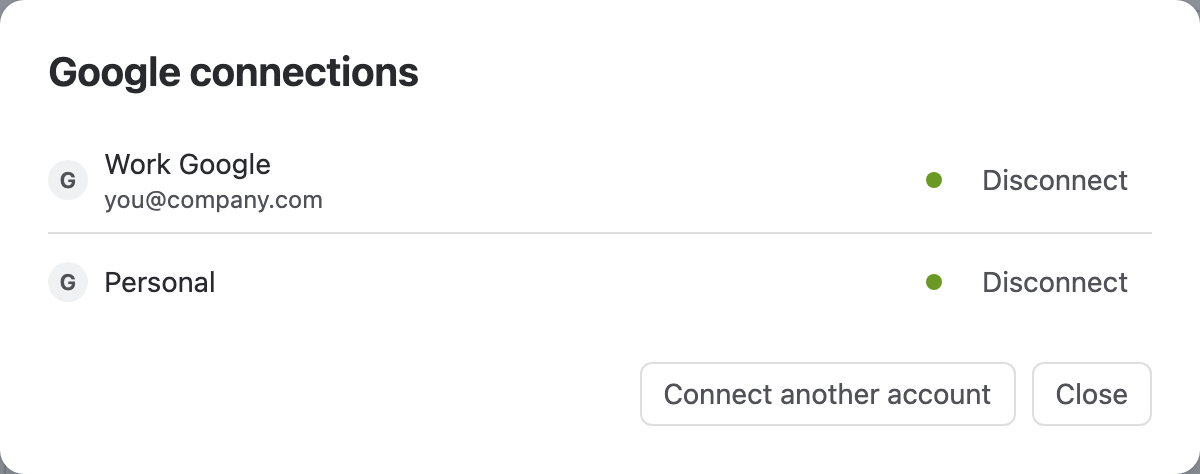
Point at Google calendars or Outlook calendars, choose ⋯ and then Manage. The connections dialog lists your accounts:
- Reconnect signs in again when a connection has expired.
- Disconnect removes the account from Solid Calendar. Nothing is deleted in Google, Outlook or Jira. If you were sending Jira dates with this account, sending stops until you connect it again.
- Connect another account adds one more.
When a connection expires
Google and Microsoft sometimes end a connection, for example after a password change or when access is removed in your account settings. Solid Calendar then shows Google connection expired (or Outlook) above the calendar, greys out that account's calendars, and the status line says Google needs attention.