Send Jira dates to Google or Outlook
Put a calendar's Jira issues into the calendar you use every day, on your phone too. When an issue is created, changed or deleted in Jira, the calendar updates within a minute.
Start sending
- Point at a calendar under My calendars and choose ⋯.
- Choose Send to Google or Send to Outlook.
- If you have more than one account, pick the Account. Check the Time zone.
- Choose Start sending.
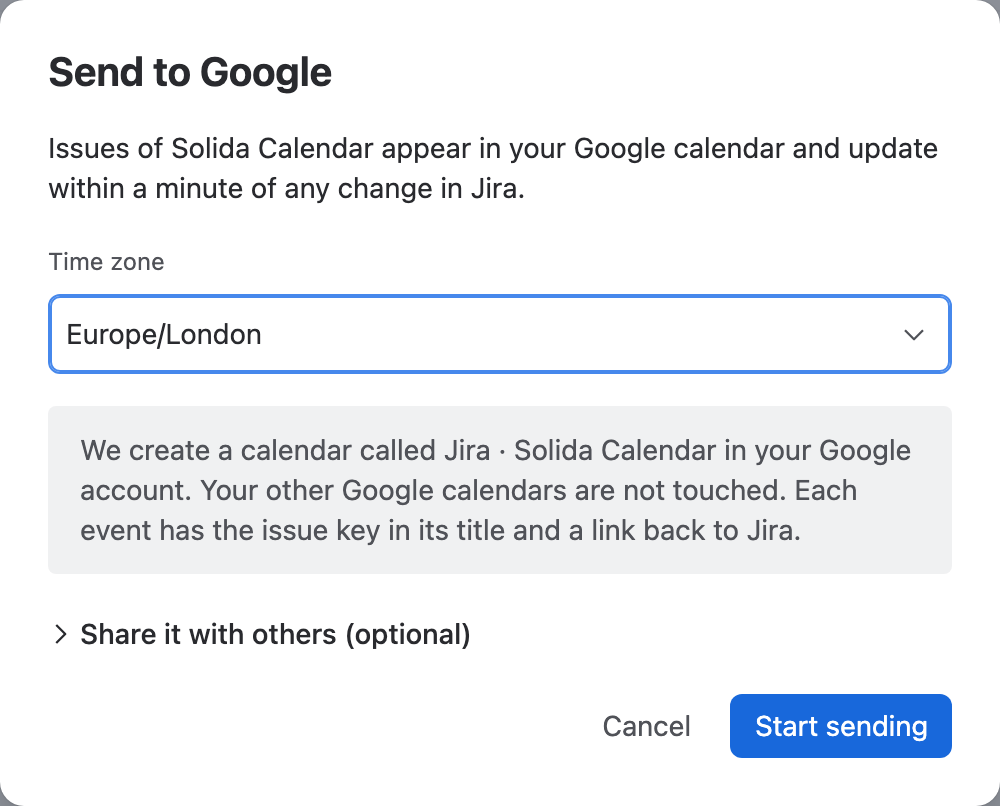
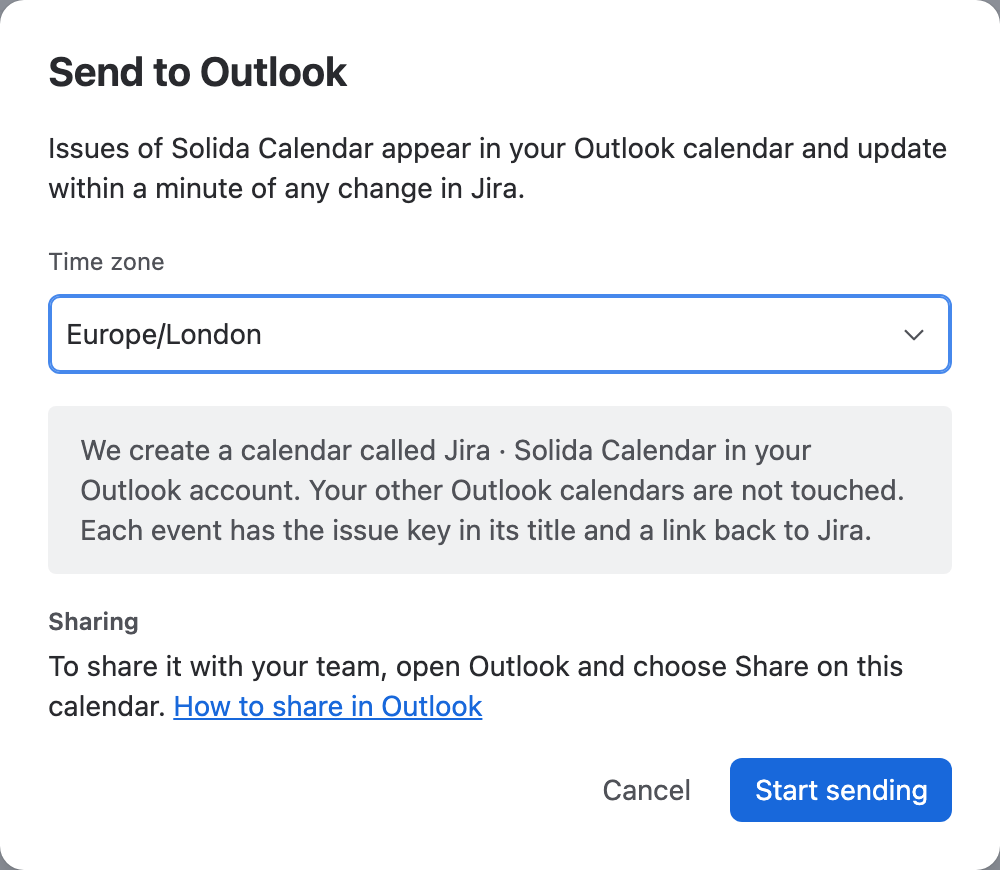
We create a new calendar called Jira · your calendar's name in that account. Your other calendars are not touched. If Outlook already has a calendar with that name, we add a number, for example "(2)".
If no account is connected yet, the dialog offers Connect Google or Connect Outlook first.
Share it with your team
- Google: open Share it with others (optional) and add email addresses under Share with (email). Press Enter or a comma after each one (up to 50).
- Outlook: share the calendar from Outlook itself. The dialog links to Microsoft's How to share in Outlook.
What gets sent
- Every issue of the Jira calendar whose start or end is in the last 30 days or later.
- Each event's title is the issue key and summary, for example
[WEB-14] Publish release notes. Its description links back to the issue. - Issues with date fields (no time) become all-day events.
- Events are shown as free time and have no reminder of their own. Set notifications in Google Calendar or Outlook if you want alerts.
- Edits made to these events in Google or Outlook are overwritten from Jira. Change the issue in Jira instead.
Each Jira calendar can be sent to one place, Google or Outlook. To send the same issues to both, add a second calendar with the same project or JQL.
Check and change sending
Choose ⋯ on the calendar, then Manage Google Calendar (or Manage Outlook Calendar).
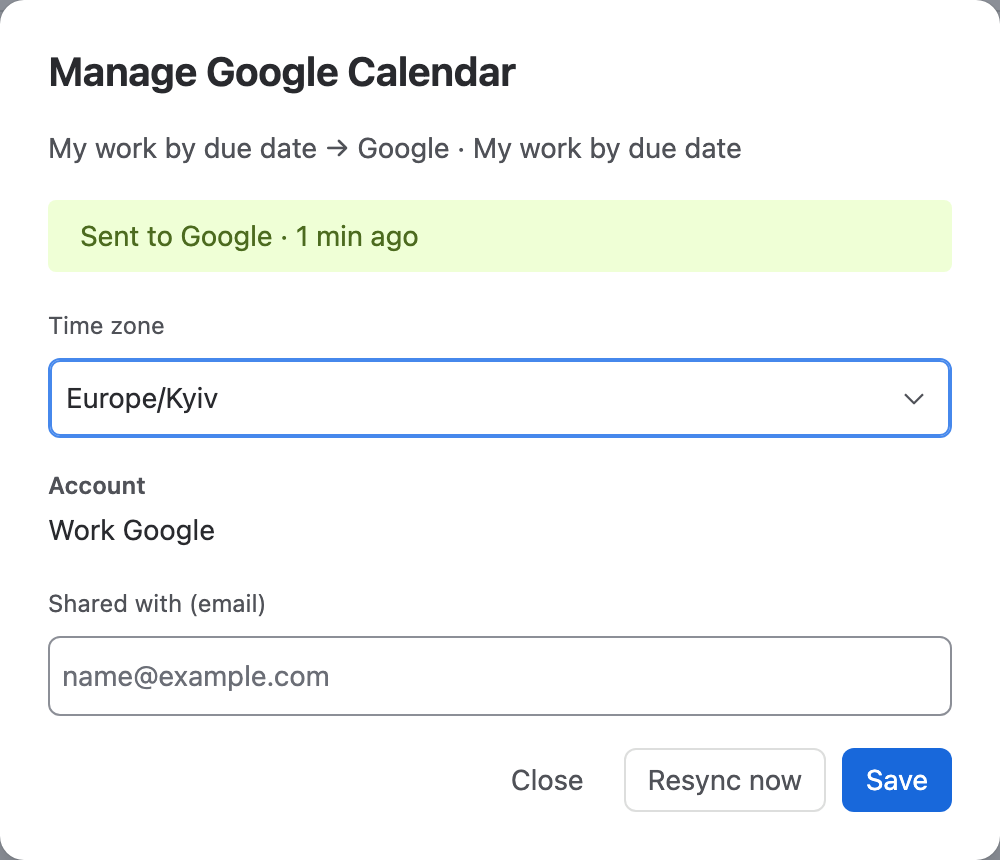
- The coloured box shows the status: sending, sent, or stopped with the reason.
- Change the Time zone, the account, or who it's shared with, and choose Save.
- Resync now sends all issues again. Use it if something looks out of date.
The calendar's icon in the side panel shows the same status. Point at it to read it, for example Sent to Google · 1 min ago.
Status messages
| You see | What to do |
|---|---|
| Sending to Google… | Nothing. It changes to "Sent" when the issues are in your calendar. |
| Sent to Google · 2 min ago | All good. |
| Not sent to Google since … Reconnect Google to resume. | The connection expired. Reconnect and sending resumes. |
| … choose a Google account to resume. | The account was disconnected. Open Manage and pick an account. |
| … Reconnect the Google account that owns this calendar. | Sign in with the account the calendar was created in. |
| … Open Manage Google Calendar to resync. | Sending failed. Open Manage and choose Resync now. |
Stop sending
- Delete from Google Calendar (or Outlook) stops sending and deletes the Jira · … calendar from that account. People it was shared with lose it too. Jira issues are not changed.
- Deleting the Jira calendar in Solid Calendar stops sending but leaves the Google or Outlook calendar in place. Delete it there if you no longer need it.
- Disconnecting the account pauses sending; connecting it again resumes.