Getting started
Solid Calendar works in Jira Cloud. A Jira admin installs it once from the Atlassian Marketplace; after that everyone on the site can open it.
Open Solid Calendar
- In Jira, open the Apps menu in the top bar.
- Choose Solid Calendar.
The page has three parts: the calendar in the middle, the side panel on the left with My calendars, Google calendars and Outlook calendars, and a status line at the bottom of the side panel.
Right after the app is installed or upgraded you may see Finishing Solid Calendar setup…. This takes up to a minute; the page loads by itself when it's done.
Your first calendar
The first time you open Solid Calendar, we create a calendar called My work by due date for you. It shows your open Jira issues (assigned to you, not done) on their due date, and is marked New.
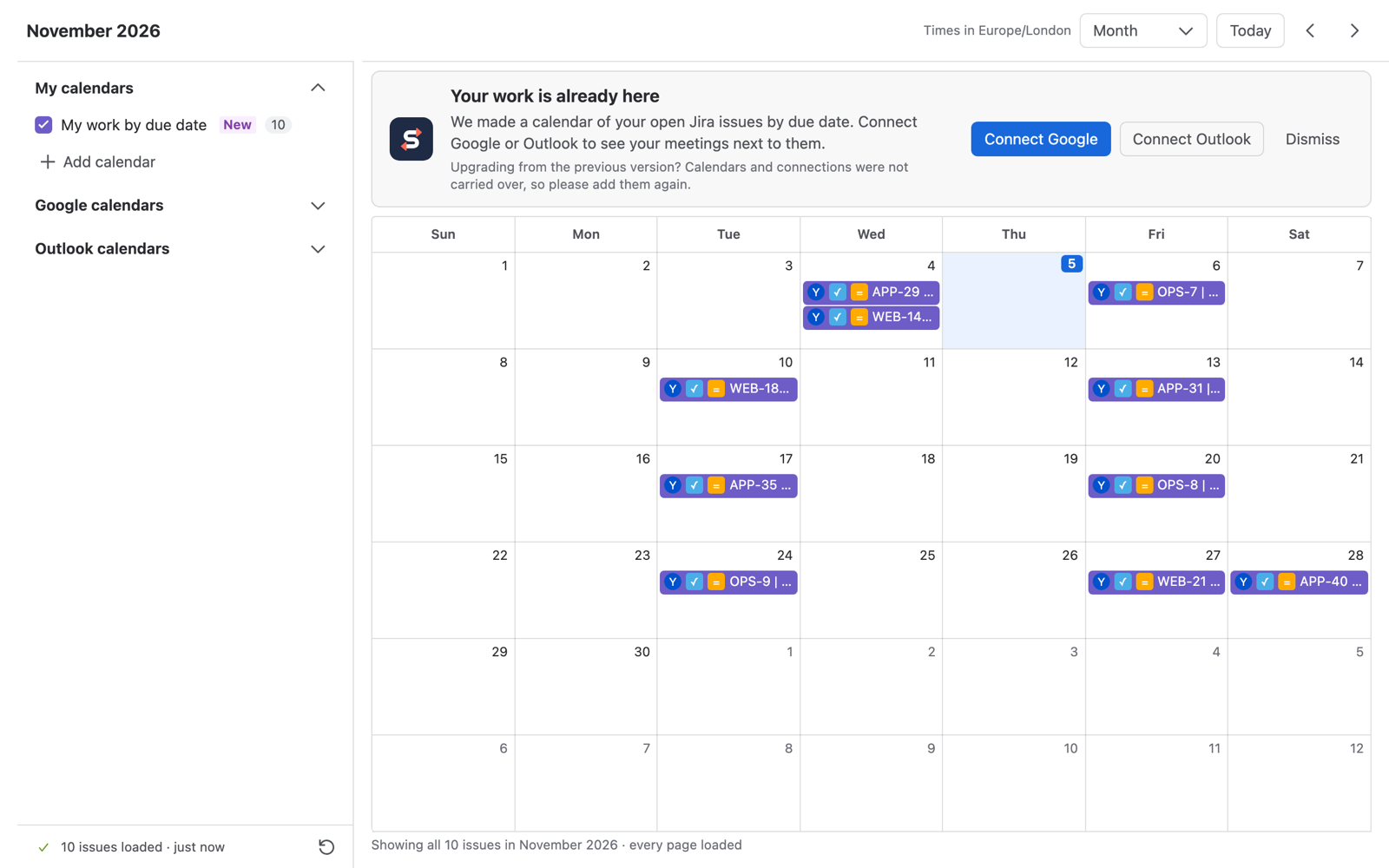
We make this calendar only once. If you delete it, it doesn't come back, and you can always add your own calendars.
Connect Google or Outlook
Until you connect an account, a header at the top of the calendar offers Connect Google and Connect Outlook. Choose one, sign in, and your meetings appear next to your Jira work. Dismiss hides the header. See Google and Outlook for the details.
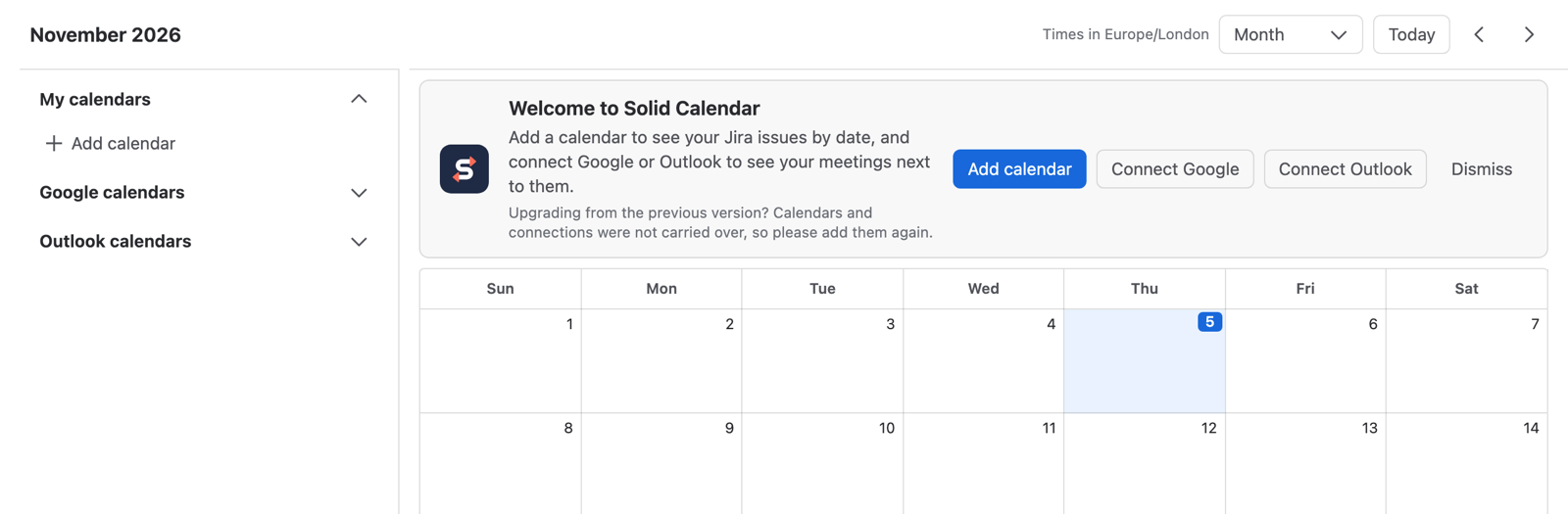
If you have no calendars at all, the header says Welcome to Solid Calendar and also offers Add calendar.
Upgrading from the previous version
The current Solid Calendar is a new app built on Atlassian Forge. Calendars and Google or Outlook connections from the previous version were not carried over. After the upgrade:
- Add your calendars again.
- Connect Google and Outlook again.
- If you sent Jira dates to Google before, set up sending again.
Your Jira issues are not affected.